
Getting the Important, but non-Urgent, Tasks Done
How often do you have things on your task list that are important, but not urgent? If you are like most of us, these tasks regularly get shoved to the side and maybe never done.
I just read a really good post at the Professional Software Development blog that deals with this very situation. Here is one of the author’s solutions:
Whenever a week goes by in which I have not made any progress on my important, non-urgent tasks, I choose one of these tasks as my next major work item. In my next available significant block of time I work on this task, ignoring all but the most urgent issues.
In essence, this is a mind trick of allocating time and getting to the nitty gritty of non-urgent tasks. The post also has another mind trick to help get these tasks done, but for that you’ll have to read the post. 🙂
I think one of the things that lawyers and law students must do is to juggle these low-urgency, but high-importance tasks. Do you have a method of handling these tasks in the legal world? Please post a comment or drop me a line.
[tags]legal andrew, mind, task[/tags]
Get more legal tips
|
See also... |
Harness the Power of Word Cross-References for Mammoth Documents
I just moved a paragraph in my research paper, and now my Table of Contents and footnotes are not correct! Has this ever happened to you? How many times have you composed a long Word document, only to have a simple edit screw up your numbered elements?
You need to harness the power of cross-references. Whether your document is a brief, a pleading, a research paper, or your new novel, Word cross-references will solve many of your problems.
Bookmarks
The primary use I have found for Word bookmarks is to make a Table of Contents for your document in progress. I have used this method for things such as class outlines, research papers, and briefs.
To use this method, simply follow these steps:
Insert Bookmarks
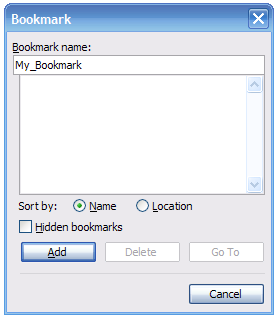 |
At every place in your document where you want to cite a Table of Contents entry, insert a bookmark. This includes Chapters, Sections, etc.
To insert a bookmark, place your cursor in the title of the section/chapter and select Insert, Bookmark. Then provide a name for your bookmark and click “Add” (note that bookmark names cannot contain spaces). Shortcut to open the Add Bookmark window: ALT+I, K.
Now just add bookmarks for every entry that you want in your Table of Contents. For ease, you can do this while you are writing. This keeps you from forgetting a section or chapter, especially for longer documents.
Create Table of Contents
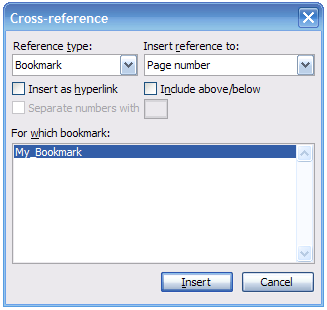 |
Go to where you want your Table of Contents and type your headings in the format you desire. Where you want a page number to appear, select Insert, Reference, Cross-reference. From the menu, select “Bookmark” and then “Page number”, select the appropriate bookmark, and then click “Insert.”
As if by magic, the page number for the bookmark will appear where you had your cursor. You can then do this for each entry in your Table of Contents.
Update Before Printing
When you have finished editing your document, the final key step to having a perfect Table of Contents is to select it, right click, and select “Update Field.” This ensures that Word has updated your page numbering to account for any changes you might have made. Be sure to do this before you print or otherwise finalize your document.
Footnotes
Don’t we all love to write research papers? Ah, the joy of footnotes in the morning. With the quick tips I’m going to give you, you’ll be on your way to footnote freedom soon.
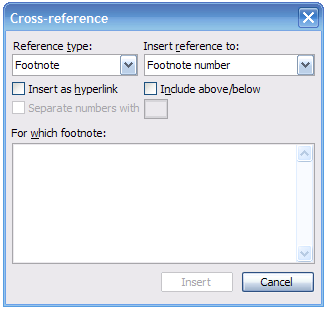 |
The main tip here is that when you need to cite one footnote from another (Blue Book anyone?), cross-references provide the best way to do it.
In the footnote you want to cite from, place your cursor where you want the destination footnote number to appear. Now select Insert, Reference, Cross-reference, and select Footnote. This window will place the footnote number of the footnote that you select into your document.
Of course, the beauty of this is that if you move the footnotes around, Word will automatically update the numbering. Isn’t that spiffy?
Do you have any nifty tips to maximize Word’s power when doing lengthy documents? Please post a comment or drop me a line.
UPDATE – 1-27-2007 – Dani wrote in, asking about updating her linked footnote numbers. I tried to help, but she really solved the problem herself, discovering a weird Word “feature” in the process. Read about it here: Reader Question – Update Cross-Reference Footnote Numbers in Word
[tags]legal andrew, microsoft word, word, bookmark, footnote, cross-reference, legal research, blue book[/tags]
Get more legal tips
|
See also... |
Mobile Edition of Legal Andrew, Now Available
For all of you Blackberry and other handheld device addicts, I have created a mobile edition of this site. Actually, Alex King’s WordPress Mobile Edition plugin did the work for me.
To view the mobile edition, direct your browser to go.legalandrew.com. Now you can view the latest productivity tips and ideas anywhere you are. If you like this, your feed reader might have a mobile option as well. I know Bloglines does.
You can use these mobile editions to save time. During my summer clerkships this year, I had a Blackberry. I also rode the train into downtown. Thus, on my 20 minute train ride, I could catch up on news and online reading by using mobile editions of websites. This is a great time saver, and it converts otherwise dead time into something useful.
Do you know of any really useful mobile sites? Please post a comment or drop me a line.
Get more legal tips
|
See also... |
Rename Westlaw Windows in Firefox to Provide Quicker Access
How many browser windows (or tabs) do you typically have open while using Westlaw? If you are like me, the answer to that question varies from 1 to as many as 15. The only problem with this is that when you are viewing some documents (cases especially) Westlaw names the windows “Find Result”. How can you tell your 15 documents apart? Previously, you couldn’t.
Today’s awesome tip is a script fresh from the factory. Westlaw Title renames your Westlaw browser windows, using the proper case name for court cases and the citation for other documents. This way, you can quickly and easily navigate between multiple documents. This should save loads of time and frustration.
To use this script, you will need to be running Firefox (like other tips I have suggested). Also, you will need to download and install a nifty extension for Firefox called Greasemonkey. Both of these products are free, so what are you waiting for?
Next simply click here to install my Westlaw Title script. You will see a prompt at the top of your window to “Install” the script. Click that button, and then you are ready to rename Westlaw windows. Did I mention that the script does all the work for you? It is hands-off from this point forward. Yeah, I thought you would like it.
Like I mentioned, I literally just finished writing this, so there might be a bug or two. Please let me know if you run into any problems, and I would be more than happy to fix them. If you have any comments or suggestions, please post a comment or drop me a line.
DOWNLOAD the script, in case you missed it.
[tags]legal andrew, westlaw, firefox, greasemonkey, research, legal[/tags]
Get more legal tips
|
See also... |
Tips on Writing – Use Them on Your Next Brief
I just ran across a great capsule-summary of writing tips (via Lifehack.org). Paul Graham’s Guide to Writing provides a quick synopsis of things to remember when writing. Here is my favorite part:
… print out drafts instead of just looking at them on the screen; use simple, germanic words; learn to distinguish surprises from digressions; learn to recognize the approach of an ending, and when one appears, grab it.
I think these tips apply to all types of writing (and I can definitely learn from them). It could be really useful in your legal writing, such as briefs and memoranda, to print out Paul’s list and then quickly scan through it before you begin. This will help keep important writing factors in your mind.
Some of Paul’s tips remind me of a great book on writing, Bird by Bird written by Anne Lamott. I highly recommend it for anyone looking to learn a bit to improve their writing.
[tags]legal andrew, writing, anne lamott, bird by bird[/tags]
Get more legal tips
|
See also... |
Quickly Browse Lexis, Google, and Other Search Results within Firefox
 Comments Off on Quickly Browse Lexis, Google, and Other Search Results within Firefox
  |
How many times a day do you click links on web pages to browse to “Next” or “Previous” pages? Or, more appropriately, how many times a day to you search for something on the web? This includes using Lexis, Google, MSN, Windows Live, Yahoo, and Technorati. What about shopping on sites like Amazon or even browsing the online catalog of your local library? I’ll bet that you click “Next” and “Previous” several dozen (if not more) times daily.
Here is a little tip that will save you precious clicking time, when navigating through those 257 cases your Lexis search retrieved (or for browsing the entire Amazon selection of Lost
As with some of my other tips, this one requires you to have the awesome, FREE browser, Firefox (downloadable at right). Once you are running Firefox, all you need to do is download a small extension called NextPlease!.
Once installed, NextPlease! allows you to use your keyboard to navigate search results for almost any website. For instance, I have my keyboard configured to use CTRL + LEFT ARROW to go to “Previous” and CTRL + RIGHT ARROW to go to “Next”. This allows me to browse search results without taking my fingers from the keyboard. What a time saver!
The only downside to NextPlease! is
that it does not currently work within Westlaw. I intend to find a solution for this soon. If you discover any other problems or need help installing anything, please drop me a line.
Do you have a tip to help people save search time on Lexis or Westlaw (or other search engines)? Please post a comment or drop me a line.
[tags]legal andrew, firefox, extension, NextPlease, Lexis, keyboard, shortcut[/tags]
Get more legal tips
|
See also... |
Law Firms Should Have Blogs to Control Online Image
HUMAN LAW has a great post about using blogs to “counter-attack” negative critiques of companies.
This article hits the nail on the head that corporations do not generally do a thorough job of presenting their side of seemingly negative situations. The same holds true for law firms and law schools.
It seems obvious that if people are blogging negatively about your institution, you should provide a response in that format. Frankly, there is no excuse for law firms not to have blogs, since they already have websites. If their blogs are indexed on major blog search engines, internet users who search for current “scandals” or stories about a firm will find the firm’s response to the situation, as well as the common-man’s view. Isn’t that a good thing?
Do you think law firms should have blogs? Please post a comment or drop me a line.
[tags]legal andrew, law firm, blog[/tags]
Get more legal tips
|
See also... |
Legal Interviews: Basic Pointers to Remember
Almost all second year law students, and some third years, are currently in the midst of that joyous time of year: interviews. Or, as some people may look at it, free trips to distant cities combined with free food (is there such a thing as a free lunch?).
Given the time of year, I thought it would be relevant to link to a good, but simple, article regarding interviewing. AllFinancialMatters has an article covering 10 basic job search tips. While these tips might be elementary to the more seasoned job searchers, everyone can probably use a refresher now and again. One of my favorite points from this list is:
8. Dress and act the part.
Almost everyone looking for a legal job understands what to do regarding dressing the part, but I think acting the part eludes a lot of people (admittedly, including myself). Of course your interviewer is looking for someone who has the drive, skills, and education to join their law firm. However, they are looking for more than that. As one of my good friends put it, “They want somebody who they would enjoy sitting by the pool and having a beer with.” It is your fun and outgoing personality, while still being professional and educated, that can be difficult to get across in a twenty minute interview.
On the point of being fun and outgoing, a book that I will be picking up today might help shy people communicate that message. It is entitled How to Make People Like You in 90 Seconds or Less by Nicholas Boothman. I will be writing a review on the book as soon as I am done reading it, so be sure to check back in a few days. You can find the book on Amazon.com, at the right.
[tags]legal andrew, law school, law firm, firm, interview, job search, how to make people like you in 90 seconds or less, nicholas boothman[/tags]
Get more legal tips
|
See also... |
Firefox Extension Checks Spelling in Lexis, Westlaw, and Other Web Forms
How many times have you typed a misspelled word into Lexis or Westlaw? Do either of these companies refund search charges for typos or suggest the correct spelling? I think not. Enter SpellBound.
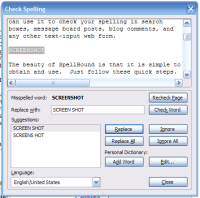
What is it?
SpellBound allows you to quickly and easily spell check any entry you make into a web form. This means that you will no longer misspell words in Lexis or Westlaw. Moreover, since SpellBound works with any web form, you can use it to check your spelling in search boxes, message board posts, blog comments, and any other text-input web form.
The beauty of SpellBound is that it is simple to obtain and use. Just follow these quick steps.
1. Make sure you have Firefox
|
|
In order to use this simple tool, you must first have Firefox, an awesome, FREE web browser. You can quickly get it by clicking on the image to the right.
2. Download SpellBound
SpellBound itself requires that you install two Firefox extensions. The first one is the actual SpellBound program. The second one is a library required to run the program. You can get a copy of both of these (for free) from Brian Cantoni’s site. Once these are installed, you are almost ready to be misspelling free!
3. Download a dictionary
A spell checker is not much good without a dictionary, so go here to install one. Many languages are supported. You can quickly get a U.S. English dictionary here.
4. Don’t worry, be SpellBound
That’s all there is to it! You will have to restart Firefox to finish the process, but once you open the browser again, you can immediately begin using SpellBound. Try it by typing something into a web text box; you can then right click and select “Check Spelling”. The SpellBound box will popup, allowing you to correct any misspelled words.
Now you can easily check your spelling anywhere on the internet. You will not incur Lexis and Westlaw searches for misspelled words, and you can present a polished, professional image in forums and blogs. Happy spelling!
If you have any questions or concerns about SpellBound (installation, use, etc), please let me know. Feel free to post a comment or drop me a line.
[tags]legal andrew, firefox, extension, spelling, lexis, lexisnexis, lexis nexis, westlaw[/tags]
Get more legal tips
|
See also... |
Does a Legal Blog Provide Any Measurable Returns?
Fellow legal blogger Grant Griffiths has an interesting article about the rewards of having a legal blog. Grant has an interesting perspective on this issue, and compares blogging to yellow page ads:
Compare the cost of one post a week, I don’t care what kind of post. Linking to another blog, news story or writing your own original work. Compare it to the cost of a yellow page ad. I will bet you, the blog posting will bring in more money for the time you spend.
One thing that seems overlooked here is an important return that I have already experienced in blogging: networking. In my short few months of blogging, I have already begun networking with fellow bloggers (legal and otherwise), thus enlarging my professional network. To my amazement, this has happened simply by having a blog, posting to it, and encouraging people to comment and email me. I guess this proves that if you are open to people, they will open up to you.
What returns have you experienced from your legal blog? Please post a comment or drop me a line.
[tags]legal, law, blog, return, money[/tags]
Get more legal tips
|
See also... |
-
Legal tips by email
Sign-up below to get email tips and exclusive discounts on videos, webinars, and future items.
All fields are required.
-
Receive updates
By email
By rss (full feed)
-
About Andrew Flusche
Lawyer, bicyclist, husband.
More about me...
Tumble Log


-
Popular Posts