
Law Libraries are Great, in Moderation

As finals approach, I imagine that many of my fellow students are spending an inordinate amount of time in their respective law libraries. Aside from the social benefits that some people seem to find in the library, they can help with productivity as well.
A great article on the subject was just posted on My Shingle, which illustrates eight reasons solo practitioners should use law libraries. My favorite two are numbers one and five: librarians and space. I think these apply to everyone in the legal profession from law students to partners at large firms.
First, librarians at law libraries have a huge amount of information at their fingertips and can help direct you exactly where to find it. Why spend time needlessly searching through shelves and books to find what you want, when the librarian can point you there in two minutes flat? This is an incredible time saver. Anything that saves time increases productivity, which is what Legal Ease is all about.
Second, libraries definitely have space for reading, research, and any other work. This creates a wonderful getaway from home, the office, the cubicle, or whatever space in which you normally work. I am a firm believer in the principle of shifting the environment around a bit when things get stale. This helps increase productivity as well. It's always good to have a change of scenery from time to time, and your local law library can do just that.
With all that said, I will put in the caveat that I think some people over-use the library. I know some of my classmates practically live there. I cannot see how that is a healthy way to study and work. For me, I enjoy a mix of working at home, in the library, and other places. I am definitely a creature of habit, but I also like to change up the habits here and there.
What do you guys think? If you have any thoughts on law libraries, or libraries in general, drop me a line or leave a comment.
[tags]legal andrew, law school, library, law library[/tags]
Get more legal tips
|
See also... |
Web Surfing at the Firm
It seems that a common topic in the news today is surfing the internet while at work. I am just thinking out loud how this might affect a lawyer's career and productivity.
First of all, many employers do not seem to mind their employees checking out a few web pages during down time, keeping up with the news, etc. In fact, I would bet that in many occupations, monitoring developments via the internet can be crucial to doing a good job. I suppose the question would be whether this applies to lawyers. Surely, keeping an eye on the legal field is important, so it would seem that monitoring developments through the internet would be acceptable to the firm.
However, as one article puts it, "Clearly, when surfing gets in the way of one’s duties and this can be well-documented, that’s another matter." This would seem to point to the people who surf the web in derogation of their job, not in support of it.
The question still remains, however, what effect casual, non-job-related surfing might have for lawyers. On this note, I would argue that it does cut into productivity. However, on the flip-side, it could be said that it provides a needed mental break from the tedious job at hand.
In the end, I think the moral of the story is to achieve a good balance. Just like it should be acceptable to take a break and walk down the hall for a cup of coffee, chatting with a colleague or two on the way, it should be OK to check out the latest Dilbert occasionally. As Aristotle would argue, moderation is the key.
[tags]legal andrew, law firm[/tags]
Get more legal tips
|
See also... |
Should Law Firms Include Employee’s Blogs on Their Site?
I just ran across an interesting post on Real Lawyers Have Blogs that suggests law firms should use RSS to include content from their employee's blogs on the firm's main site. While this idea is interesting, I wonder what ramifications it might have.
I am an aspiring law student, hoping to make it into a big firm one day, but I'm not sure I would want the firm to include my blog on their site. In fact, I'm not sure that I want the firm to even know about my blog. Although, they will obviously find it, if it is even remotely successful.
There seems to be a lot of disagreement about whether a blog helps or hurts your career. I suppose that, done well and professionally, it could only do good things for you. I imagine that the people that get fired for their blog writings usually do something, such as satirize their boss or probably even worse things.
I know one thing for sure. If I don't quite writing blog posts and start studying for finals, I won't be landing that firm job I'm hoping for. I suppose this is another way blogging could hurt your career. 🙂
[tags]legal andrew, law firm, employee, blog[/tags]
Get more legal tips
|
See also... |
Review: T-Mobile Blackberry 8700g
Gizmodo posted a pretty thorough review of the T-Mobile Blackberry 8700g. All in all, it looks like a pretty good device. The reviewer sums it up pretty nicely:
Really, on the whole, I liked the 8700g quite a lot. I could imagine getting a wee bit possessive of it had I been using it in the context of a more BlackBerry-friendly email account, one with junk mail filtering and folders that the unit could understand. It’s definitely worth a look for most folks, which is higher praise than I can give to most mobile devices.
Do any of you have the new 8700g? If so, what do you think about it? We'll leave the topic of Blackberries in general to a future post. I'm just not convinced that they're actually a good thing. Of course, I don't own one yet, so I am not much of one to talk.
[tags]legal andrew, t-mobile, blackberry, 8700g[/tags]
Get more legal tips
|
See also... |
Relax and Work at the Same Time
My wife is the greatest! 🙂
Saturday I was working hard on my research term paper, and my back began to hurt pretty bad. I finally leaned back in my chair and got a bit more comfortable, when my wife came up with a great plan. She put a large (3") binder underneath my laptop, raising the screen and tilting the keyboard to a better angle. Then she put a towel on the edge of the desk for me to rest my arms on. To complete the legal-writing-in-comfort setup she put a pillow in the back of my chair.
The result? I could lean way back in my chair and get comfortable. I could still reach the keyboard to type, and I could see the screen even better than normal.
Does anybody else have ideas or tips for being able to relax better when working? Drop me a line at lawrence.flusche at gmail dot com, or just leave a comment for everyone to see.
[tags]legal andrew, relax[/tags]
Get more legal tips
|
See also... |
Kill Your Mouse: Launch Applications with a Key Press
This is the third installment of the Kill Your Mouse series.
I hope that everyone has been busy learning their keyboard shortcuts. I have been trying to improve my own memory of them as well. Hopefully by now you realize the important time that you can save by knowing a few of these handy shortcuts.
Step it up a Notch
Today’s tip will take your keyboard skills a bit further. Beware: This is not for the faint-of-heart. But, I do have faith that everyone can understand and utilize the concepts presented here. What kind of a blogger would I be if I threw you in over your head? Ok, don’t answer that. 🙂
We are going to take a few minutes to learn how easy it is to expand the keyboard shortcuts on your computer. What if I told you that you could make Win+i open your favorite browser (Firefox, right? ;))? Perhaps you would like Win+w to open Microsoft Word for all those legal documents you need to type. One shortcut I have found handy is having Win+n open Notepad for a quick note. Another favorite is Win+c opening Calculator to do some quick math (I’m definitely part of the calculator generation).
Installation
Bear with me here, since we are going to need to install a little program on your computer. It is called AutoHotKey. By installing this simple program you will be able to automate just about everything on your computer. I have personally used this program on several machines for the past couple months, and I have had great success with it. It also comes highly recommended from other users.
To install AutoHotKey, simply download the appropriate file for your system from the distribution site. Follow the simple installation instructions, and you’ll be ready to launch any application with a key press!
One final installation step is to make sure AutoHotKey.exe is in your Startup folder (on Windows – sorry, I have no Mac experience). To verify this, click Start, Programs, Startup, and see if you see AutoHotKey listed there. If not, here is what to do:
- Go to Start, Programs, and right click on Startup. Select “Open All Users.”
- With that window open, double click on My Computer (on your desktop) and navigate through to “Program Files”, then to “AutoHotKey”.
- Right click on AutoHotKey.exe (the big ‘H’), select “Create Shortcut.”
- Name the shortcut something meaningful.
- Drag and drop the shortcut from its current folder to the “Startup / All Users” folder.
- Smile. 🙂
Your First Hot Key
Once AutoHotKey is running, you should see a big green box with an “H” in it in your system tray. To edit your default script, simply right click on this, and select “Edit.” This makes it easy to make changes on the fly during your busy work day.
At this point, you should have a file named AutoHotkey.ini open in your default text editor (probably Notepad). This file has some examples on what you can do with the program, but for now we’re going to ignore those. The focus of this article is on launching applications.
It’s pretty simple to define a hotkey within this scripting language. Just go to a blank line, type the keys, followed by ::, followed by the program you want to launch. Here is my favorite example:
#N::Run %WinDir%\notepad.exe
This simple line will run Notepad whenever I press the Windows key + “n”. A note about the # sign: this means “windows key” to the scripting program. ! = Alt, and ^ = Ctrl. For other syntax, check out the help file. This is also easily accessible by right clicking the system tray H and selecting “Help.”
The final step to adding a hotkey is to save your AutoHotkey.ini file, close it, and then right click on the system tray H and select “Reload this script” (or just right click and then press “r”). This will make any changes you made to the file become active immediately.
What To Automate?
I tend to go a bit overboard with hotkeys, since I am really into using my keyboard instead of my mouse. A good general rule of thumb for most people would be to use hotkeys for programs you launch repeatedly throughout the day. For example, if you’re an Outlook user, you probably open it once in the morning and use it all day. You might not want a hotkey for this. (I’m an oddball in this respect, since I close and re-open Outlook several times during the day.)
A good candidate for a hotkey is a program like your web browser, which you most likely launch dozens of times throughout the day. Here is my hotkey to launch my favorite browser:
#I::Run %ProgramFiles%\Mozilla Firefox\firefox.exe
One thing to note about Firefox: You can simply append a website address to the end of the above line (add a space, then type www.whateversite.com), and the browser will open to the specified page. Pretty neat, huh?
My Personal Challenge to You
You didn’t think you would get off today without a personal challenge, did you? Ok, now you know the basics of setting up your own hotkeys, and you can add a new one whenever you decide you need it.
Today’s challenge is to actually add a few hotkeys to your AutoHotkey.ini file. Simply decide what program you want to launch, find the path (navigate through My Computer, Program Files, etc, until you find it OR you can right click on it’s entry in the Programs list of the Start menu and select “Properties”), and then follow the directions above.
Once you have a few hotkeys added, remember them. Use them. They are your friends. Well, they can’t talk to you and console you when you’re down, but they can make your legal career just a bit smoother.
The Series: Kill Your Mouse
[tags]legal andrew, autohotkey, launch application, keyboard, shortcut[/tags]
Get more legal tips
|
See also... |
More Windows Keyboard Shortcuts
Just when I post what I think is a good start on keyboard shortcuts, I run across an awesome post like this one from Lifehack.org. They found a list of "Windows keyboard shortcuts you never knew existed," which even has me grinning. 🙂
I think it just goes to show that no matter how much we know, there is always something more we can learn.
Now it's time to study our keyboard shortcuts a little more, and get ready for the next installment of "Kill Your Mouse". It's coming to this blog near you…very soon.
Windows Keyboard Shortcuts You Never Knew Existed [Lifehack.org]
[tags]legal andrew, lifehack.org, keyboard, shortcut, windows[/tags]
Get more legal tips
|
See also... |
Blackberry (Thumb) Coming to Japan
It looks like Japan will soon be joining the rest of Corporate-Earth by having Blackberries among the rest of their mobile technology arsenal. I'm still not convinced that Blackberries are a good thing, but we'll see what they do for Japan.
I imagine, at the very least, they will soon start having problems with "Blackberry Thumb" as people in the U.S. and the UK have.
[tags]legal andrew, japan, blackberry[/tags]
Get more legal tips
|
See also... |
Kill Your Mouse: Keyboard Shortcuts
Now that everyone is excited about the concept of improving your productivity by using your mouse less, here is your first set of concrete tips to help you begin killing your mouse. Take a few minutes to read this quick post, study its contents, and implement it. I guarantee that your career will thank you.
Keyboard Power
The first step to killing your mouse is to begin realizing the potential of your keyboard. While you may know of several of these tips, perhaps a few of them will be new to you. Virtually every program has keyboard shortcuts that you can utilize to increase your productivity. The only thing you have to do is to learn them. Fortunately, there are many shortcuts that are common across different programs, so the learning curve is considerably decreased.
Here are just a few examples.
Microsoft Word:
Ctrl + n – New
Ctrl + o – Open
Ctrl + p – Print
Ctrl + s – Save
Firefox:
Ctrl + d – Bookmark
Ctrl + h – History
Ctrl + j – Downloads
Ctrl + p – Print
Alt + Left – Back
Alt + Right – Forward
My Gift to You
To help you learn some of these basic keyboard shortcuts even quicker, I have put together a simple list. You can download the PDF, print it out, cut out the list, and tape it to the side of your monitor. This way you can have a quick reference available whenever you are at your computer.
Personal Challenge
Between now and my next post in the "Kill Your Mouse" series, I am challenging you to learn & use as many of these shortcuts as you can. If you want to go the extra step, you can even explore your current programs and figure out other keyboard shortcuts.
Finally, if you want to go the extra extra step you can start learning how to customize your keyboard shortcuts. For example, in Microsoft Word, you can go to Tools, Customize, and then click the Keyboard button at the bottom of the window. You can then custom map your keyboard shortcuts through a window like this:
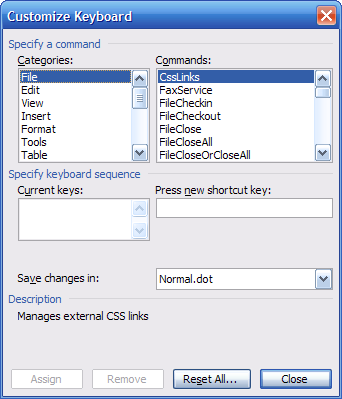
That's it for now. Good luck with your keyboard shortcuts. Learn these and you'll be one step closer to killing your mouse.
[tags]legal andrew, keyboard, shortcut[/tags]
Get more legal tips
|
See also... |
Laptop Stand Lowers Back and Eye Strain
 Are you of the 92% of business travelers who carry your laptop onto airplanes? Have you found yourself trying to review a document or write a brief or contract, but end up with back pain and strained eyes? It looks like the Keynamics laptop stand might be for you.
The stand is made to fold up and fit inside your carry-on or briefcase, so it is as portable as you. Simply unfold it, place your laptop on top, and then lean back to work. For only $19.99, it might be worth a try.
At the very least, it should reduce back and eye strain while working on long flights. Hopefully, it can even increase your productivity.
Also of note, Keynamics has several different stands designed for use at your desk as well. These could be worth a look, if you use your laptop while in the office.
[tags]legal andrew, laptop stand[/tags]
Get more legal tips
|
See also... |
-
Legal tips by email
Sign-up below to get email tips and exclusive discounts on videos, webinars, and future items.
All fields are required.
-
Receive updates
By email
By rss (full feed)
-
About Andrew Flusche
Lawyer, bicyclist, husband.
More about me...
Tumble Log


-
Popular Posts